 PHP Advent
Composer in Production: Audit, Platform, and Safe Updates

Commit composer.lock so production installs use the versions you reviewed. Run composer audit --locked --no-dev in continuous integration to catch known vulnerabilities before deployment, and set runtime requirements with config.platform in composer.json. For deployments, use composer install --no-dev --no-interaction --prefer-dist --optimize-autoloader. When a package needs upgrading, target it with composer update vendor/package --with-all-dependencies so you can review the change without updating the entire project.
A PHP application can depend on dozens or hundreds of third-party packages installed through Composer. These libraries save development time, but they need maintenance. A vulnerable package can expose the application to an exploit. Differences between local and production environments can cause fatal errors when an extension is missing, while unoptimized autoloaders spend CPU time repeating filesystem lookups.
Security Auditing with Composer Audit
Composer 2.4 introduced the audit command for security advisory scanning. By default, it checks package versions against advisories supplied through the Packagist API and reports matches with documented vulnerabilities. Other configured Composer repositories may supply advisory data too.
Running Audits Locally and in Continuous Integration
An audit checks the dependency graph for packages matching an active CVE or security advisory. On a development machine with packages installed, the base command scans everything, including development tools:
composer auditFor continuous integration and production deployments, use these two flags:
composer audit --locked --no-devThe --locked flag checks the packages recorded in composer.lock, regardless of what is currently installed in vendor/. CI can therefore scan before downloading package archives.
The --no-dev flag excludes development dependencies from this scan. Run a separate audit without that flag in CI so vulnerable test and build tools remain visible, even though they do not ship in the production artifact.

Understanding Exit Codes and Output Formats
The composer audit command reports its status through exit codes:
- Exit code
0: No known security advisories or policy violations exist in the scanned dependencies. - Exit code
1: Composer found packages matching dependency policies or failed because required packages were missing. Read the output to identify the reason.
CI can use these exit codes to block a pull request. If a commit introduces a package with a documented vulnerability, the audit step fails and stops the pipeline before the merge.
Use --format to choose output for a reporting tool or security dashboard:
composer audit --locked --no-dev --format=jsonThe available formats are table (the human-readable default), plain (text without ANSI colors or table borders), summary (a count of affected packages), and json. JSON output contains the full advisory data, including CVE identifiers, titles, affected version constraints, and advisory URLs. See the Composer CLI audit reference for the full option list.
Automatic Auditing During Installation
You can also audit packages as part of installation and updates. Pass --audit to the install command:
composer install --no-dev --auditWith --audit, Composer runs a scan after installation. Keep a separate audit step in CI when you need to check the lockfile before installing packages.
Managing Unfixable Advisories with audit.ignore
An advisory sometimes arrives before an upstream patch is available. It may also affect a part of the package your application does not call. In either case, you may need to keep deploying while the advisory remains open.
You can ignore individual advisories in the config section of composer.json and keep the rest of the CI audit active:
{
    "config": {
        "audit": {
            "ignore": {
                "CVE-YYYY-NNNN": "Record the affected path and the temporary mitigation"
            }
        }
    }
}
Replace the placeholder with the actual advisory identifier and record why the exception is justified. Once a patched release is available, remove the audit.ignore entry and update the package.
Enforcing Runtime Parity with Platform Configuration
Differences between developer laptops, CI runners, and production servers are a frequent cause of PHP deployment failures.
Suppose a developer runs composer update on macOS with PHP 8.4. A dependency has just released a version that requires PHP 8.4 or ext-intl, and the developer's machine meets those requirements. Composer selects it. Deploying that lockfile to a production container with PHP 8.3 and no ext-intl then causes fatal runtime errors.
Configuring the Platform Option
Set platform inside the config block of composer.json to control the platform packages Composer uses for dependency resolution. The Composer configuration reference describes this setting. This example models the production PHP version and an extension known to be available there:
{
    "name": "enterprise/billing-api",
    "description": "Production billing microservice",
    "type": "project",
    "require": {
        "php": "~8.3.0",
        "ext-json": "*",
        "ext-pdo": "*",
        "ext-pdo_pgsql": "*",
        "guzzlehttp/guzzle": "^7.8"
    },
    "config": {
        "platform": {
            "php": "8.3.16",
            "ext-pdo_pgsql": "8.3.16"
        }
    }
}
With this configuration, composer update resolves dependencies as though PHP 8.3.16 and the stated ext-pdo_pgsql version are present. Other extensions on the machine running Composer remain visible unless you explicitly hide them with a false platform value. If your laptop has ext-intl and production does not, run resolution in a production-like container or set "ext-intl": false in config.platform. When you are ready to raise the PHP target, test the language changes described in PHP 8.5 features as part of the runtime upgrade.
Before and After: Platform Configuration
Consider an application whose root composer.json lacks explicit platform emulation.
Here is the unconstrained configuration:
{
    "name": "company/storefront",
    "require": {
        "php": "^8.2 || ^8.3",
        "symfony/http-foundation": "^6.4"
    }
}
In this unconstrained state, running composer update on a developer machine with PHP 8.4 resolves packages that may drop support for PHP 8.2 or require PHP 8.4 syntax. When deployed to a server running PHP 8.2, the deployment fails or crashes at runtime.
Here is the constrained configuration with platform locking:
{
    "name": "company/storefront",
    "require": {
        "php": "^8.2 || ^8.3",
        "symfony/http-foundation": "^6.4"
    },
    "config": {
        "platform": {
            "php": "8.2.27"
        }
    }
}
In this constrained configuration, Composer resolves against PHP 8.2.27. It rejects package versions requiring PHP 8.3 or 8.4. That does not prove full production compatibility: extension availability and the real server still need checking.

Understanding Platform Check
By default, composer install and composer dump-autoload generate vendor/composer/platform_check.php. The script runs whenever the application entry point includes vendor/autoload.php.
The script checks the runtime on the host:
- It verifies that the running PHP binary satisfies the version constraints of all installed packages.
- It verifies required extensions only when
config.platform-checkis set totrue. The default isphp-only.
If the host fails these checks, the script throws a fatal error immediately. This stops the application before it runs partially initialised code that would fail later on a missing function or invalid syntax.
Set "platform-check": true if you want this generated runtime check to cover extensions as well as PHP. Use composer check-platform-reqs during deployment in either case; it checks the real platform before traffic reaches the application.
Verifying the Host with check-platform-reqs
Platform emulation has a catch. During composer install, Composer assumes the environment described by config.platform exists. It will not complain about an extension missing from the production host if the configuration says that extension is present.
Running Platform Requirement Checks
Use check-platform-reqs to inspect the host's actual PHP version and loaded extensions against installed package requirements. The command ignores the emulated values in config.platform:
composer check-platform-reqs --no-devIf the server or Docker container lacks an extension, the command lists what is missing and exits with a non-zero code. For example, a container build might have omitted ext-bcmath or ext-redis:
Checking platform requirements for packages in the vendor dir
ext-bcmath     missing    The package my-company/billing requires ext-bcmath (*)
php            8.3.16     success
ext-pdo        8.3.16     success
Pre-Deployment Verification with the Lock Flag
Add --lock to check the platform before extracting or installing vendor archives:
composer check-platform-reqs --lock --no-devWith --lock, Composer reads requirements directly from composer.lock. Deployment scripts and Docker multi-stage builds can check operating system packages and PHP extensions before starting the full install. The Composer CLI platform check reference documents the command options.
Reproducible Production Deployments with composer.lock
Use composer install for deployments. composer update does a different job:
composer updatereadscomposer.json, resolves dependency rules, calculates the newest compatible versions, and writes a newcomposer.lockfile.composer installuses the versions selected incomposer.lockwhen a lockfile is present. It still checks whether the lockfile and platform meet the project's requirements.
Avoid running composer update on a production server or during deployment. If you resolve dependencies at deployment time, two servers deployed thirty minutes apart can receive different versions. Those differences can break clustering, session compatibility, and deterministic testing.
The Anatomy of composer.lock
The composer.lock file records the application's complete dependency tree. Each package entry includes:
- The exact semantic version resolved (for example,
v2.4.1). - The source repository URL and specific git commit hash.
- Distribution archive details where the repository provides them.
- The sub-dependencies and platform requirements for that package version.
Committing composer.lock gives developers, CI agents, and production servers the same selected package versions when they run composer install. Different install flags, scripts, plugins, or platform environments can still change the resulting artifact. The Composer basic usage documentation explains how the lockfile works.
The Production Deployment Command
For a production deployment, run:
composer install --no-dev --no-interaction --prefer-dist --optimize-autoloaderThe flags control what gets installed and how:
--no-dev: Leaves out packages defined inrequire-dev, including test utilities, code coverage tools, and static analyzers. This reduces the deployment footprint and security exposure on production servers.--no-interaction(-n): Suppresses terminal prompts. On an unattended server, Composer fails on an error instead of waiting for someone to answer a prompt.--prefer-dist: Prefers distribution archives over source checkouts where they are available. Composer already defaults to distribution installs; the explicit flag records the deployment intent.--optimize-autoloader(-o): Builds a class map from PSR-4 and PSR-0 paths, reducing filesystem checks for mapped classes at runtime.
Autoloader Optimization in Production
During local development, Composer's dynamic autoloader maps namespace prefixes to directories using PSR-4. For a class such as App\Services\PaymentGateway, it parses the namespace and maps it to src/Services/PaymentGateway.php. It then uses filesystem calls such as file_exists() or is_file() to locate the file.
Dynamic lookup lets you add classes without rebuilding the autoloader cache. Class lookups that miss the map can require filesystem checks. If you investigate latency with the tools covered in PHP profiling, check whether autoloading is a meaningful part of the request before changing its settings.
Composer has three autoloader optimization strategies, described in the Composer autoloader optimization guide.
Level 1: Standard Class Map Optimization
Enable the standard class map optimization with --optimize-autoloader, or -o:
composer install --no-dev --optimize-autoloaderYou can also generate an optimized autoloader for an existing vendor/ directory without reinstalling packages:
composer dump-autoload --no-dev --optimizeComposer scans the PSR-4 and PSR-0 directories in your application and vendor dependencies, then writes an associative array to vendor/composer/autoload_classmap.php.
At runtime, a single array lookup returns the class's absolute file path without filesystem path resolution. With PHP OPcache enabled, autoload_classmap.php is compiled into shared memory, so these lookups are very fast. If the class map has no entry for a requested class, Composer falls back to the usual PSR-4 filesystem scan.
Level 2/A: Authoritative Class Maps
For maximum autoloader performance, use an authoritative class map:
composer install --no-dev --classmap-authoritativeOr when dumping an existing autoloader:
composer dump-autoload --no-dev --classmap-authoritativeAuthoritative mode includes the Level 1 optimizations but changes what happens when a class is absent from autoload_classmap.php. Composer treats the class as nonexistent and returns false immediately, without falling back to the filesystem.
Negative lookups, including checks through class_exists(), return without a filesystem search. Measure the effect in your application before choosing this stricter mode.
Check how your application creates classes before enabling this mode. Doctrine proxies and custom template engines may write PHP files into a cache directory after deployment. The authoritative autoloader will refuse to load those classes unless their generated directories were included in the class map during the build.
Level 2/B: APCu Autoloader Caching
If you need dynamic class generation and cannot use an authoritative map, use APCu caching:
composer install --no-dev --apcu-autoloaderOr rebuild the autoloader with:
composer dump-autoload --no-dev --apcuComposer can cache both found and missing classes in APCu. When a class has not been cached, it can still check the filesystem, which makes this mode compatible with classes generated after the map was built. The production PHP runtime needs APCu enabled for the cache to help.
Disciplined Updates: Updating One Package at a Time
Dependencies need updates for bug fixes, performance improvements, and security patches. Updating all of them at once makes those changes harder to manage:
# High-risk command: updates all project dependencies simultaneously
composer update
An unconstrained composer update can change dozens of packages in a single commit. If production then develops a regression, you have to work out which of those updates caused it.
Updating a Single Targeted Package
Keep the change easier to review by targeting one package:
composer update symfony/http-foundationThis allows symfony/http-foundation to move within its constraints while keeping other packages locked. If its dependencies also need to move, Composer will tell you that the partial update is blocked.
Handling Transitive Dependencies with Flags
A targeted package may need newer versions of its dependencies. If one of those versions is locked, the partial update may fail until you allow the related package to move too.
Two flags control updates to those dependencies:
# Also permits dependencies to update, except root requirements
composer update symfony/http-foundation --with-dependencies

# Also permits dependencies that are root requirements to update
composer update symfony/http-foundation --with-all-dependencies
Use -W (--with-all-dependencies) when the update needs newer dependencies that are also direct requirements in your root composer.json. This lets the solver update packages throughout the dependency tree while keeping unrelated packages at their locked versions.
Verifying Updates with Automated Checks
After the update regenerates composer.lock, run your tests and static analysis before opening a pull request. Tools covered in PHPStan on legacy code check that dependency method signatures, parameter types, and return values still work with your code.
Read the composer.lock git diff. Check every changed package, including transitive dependencies, for unexpected major version bumps. Run the audit again after updating.
Complete Production CI/CD Pipeline Implementation
A GitHub Actions deployment pipeline can run these checks in sequence, then install the packages for production:
name: Production Deployment Pipeline

on:
  push:
    branches:
      - main
  pull_request:
    branches:
      - main

jobs:
  verify:
    name: Verify Dependencies and Security
    runs-on: ubuntu-latest
    steps:
      - name: Checkout code
        uses: actions/checkout@v4

      - name: Setup PHP
        uses: shivammathur/setup-php@v2
        with:
          php-version: '8.3'
          extensions: pdo, pdo_pgsql, intl, mbstring, zip
          coverage: none

      - name: Validate composer.json and composer.lock
        run: composer validate --check-lock

      - name: Run security audit
        run: composer audit --locked

      - name: Audit production dependencies
        run: composer audit --locked --no-dev

      - name: Verify host platform requirements
        run: composer check-platform-reqs --lock --no-dev

      - name: Install dependencies for checks
        run: composer install --no-interaction --prefer-dist

      - name: Run static analysis
        run: vendor/bin/phpstan analyse

      - name: Build production dependency set
        run: composer install --no-dev --no-interaction --prefer-dist --optimize-autoloader

      - name: Check installed production packages
        run: composer check-platform-reqs --no-dev
In this pipeline:
composer validate --check-lockchecks the manifest and whether its lockfile is current.- The full audit covers build tools as well as runtime packages; the second audit shows the production subset.
composer check-platform-reqs --lock --no-devverifies the runner's PHP and extensions against the lockfile before installation.- The first install includes development tools so PHPStan can run. The later
--no-devinstall builds the production dependency set and an optimized autoloader. - Run tests and any application-specific build steps before shipping the artifact. Repeat the platform check in the actual deployment environment, since a passing check on the CI runner does not prove that another host has the same extensions.
Rob Allen's automated deployment guide makes the case for putting deployment steps into repeatable scripts. Document those steps for the people who will operate them, too. Clear technical writing rules help keep deployment runbooks and onboarding procedures understandable during an incident.
Common Production Mistakes and Solutions
Mistake 1: Committing composer.json Without Updating composer.lock
A developer manually edits a version constraint in composer.json (such as changing "guzzlehttp/guzzle": "^7.5" to "^7.8") and commits the file without running composer update guzzlehttp/guzzle.
Production runs composer install with an out-of-date lockfile. Composer warns or fails when the locked versions do not meet the changed requirements, instead of performing the intended upgrade. The team then has to repair the release under pressure.
Run composer validate --check-lock in CI. It compares the hash in composer.lock with the content hash of composer.json and fails when they differ.
Mistake 2: Missing Platform Extensions on Production Hosts
An application works in local Docker containers but crashes on staging with a fatal error about a missing ext-intl or ext-bcmath extension.
The local environment had the extension; the staging PHP runtime did not. Platform emulation allowed composer install to finish without warnings.
Include composer check-platform-reqs --no-dev in the deployment script so a missing extension stops deployment before web traffic reaches the application.
Mistake 3: Deploying Development Dependencies to Production
A deployment script runs composer install without the --no-dev flag.
That puts PHPUnit, mocking libraries, and development profilers into the deployment artifact. They take up space and add packages that the running service does not need. Keep the web server's document root limited to the public entry point regardless of which packages are installed.
Pass --no-dev during production builds and set server file permissions to restrict access to the public/ web root.
Mistake 4: Breaking Runtime Proxies with Authoritative Class Maps
A team enables --classmap-authoritative for maximum autoloader performance, then gets reports that users cannot save database entities.
The Object-Relational Mapper (ORM) generates proxy classes in var/cache/proxies/ at runtime. Those classes are absent from the compiled class map, so the authoritative autoloader rejects them and PHP throws a fatal class not found error.
Generate the proxies during the build, before running composer dump-autoload --classmap-authoritative. Alternatively, use --optimize-autoloader so Composer can fall back to the filesystem for generated files.
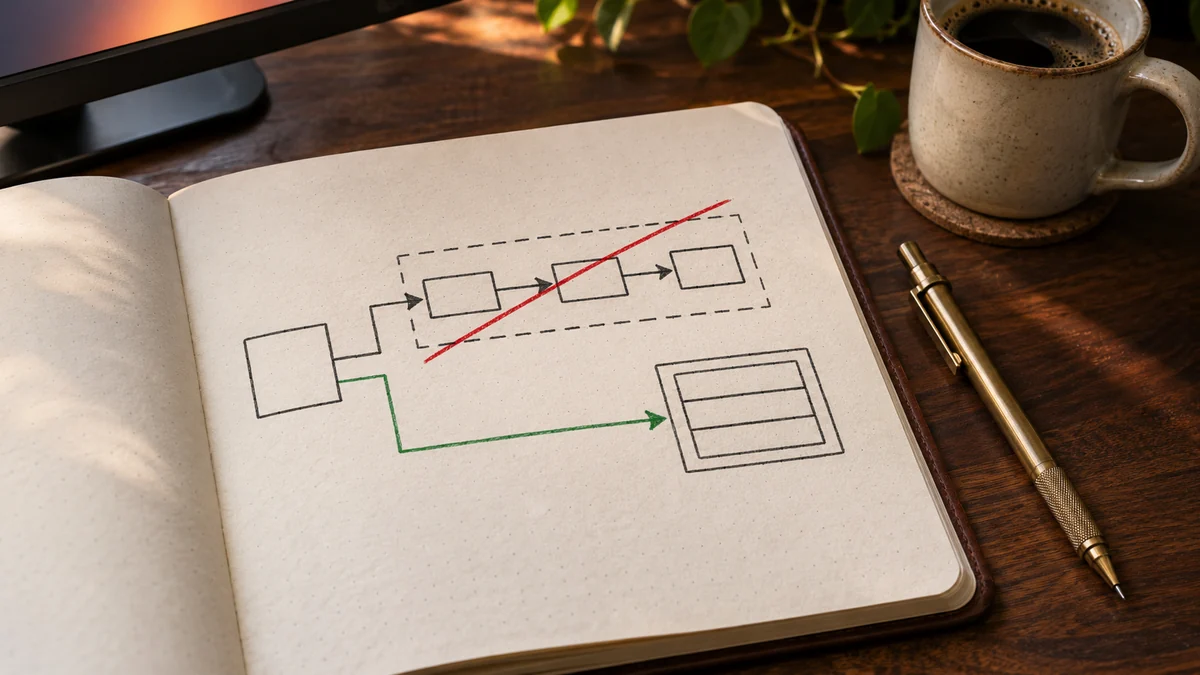
Mistake 5: Resolving Merge Conflicts in composer.lock by Deleting It
Two developers merge branches that both added new dependencies, causing a git merge conflict in composer.lock. To resolve the conflict, a developer deletes composer.lock and runs composer install or composer update.
Deleting the lockfile removes the locked versions of every other dependency too. The resulting update can change dozens of unreviewed packages and lose the reproducibility the lockfile provided.
Keep the lockfile. Check out the target branch's version, re-run the targeted command (composer require new/package), and check that only the intended packages changed.
Frequently Asked Questions
What is the difference between composer audit and roave/security-advisories?
The roave/security-advisories package is a development dependency that conflicts with any package version containing a known security vulnerability. It operates at dependency resolution time, preventing vulnerable versions from ever being written to composer.lock.
The composer audit command checks existing lockfiles and installed packages against live vulnerability databases. It can catch an advisory published months after you installed a package, while roave/security-advisories blocks known vulnerable versions during resolution.
Should composer.lock be committed in open source libraries?
Commit composer.lock for applications so deployment uses the versions tested in CI. Composer's basic usage guide also recommends committing a library's lockfile for that library's own development. When another project installs the library as a dependency, the root project's resolution determines the installed versions, so a library should test across the dependency versions its constraints permit.
Does autoloader optimization replace OPcache?
No. Autoloader optimization and OPcache address two different stages of execution.
Autoloader optimization reduces the work needed to map a class name to a file. OPcache caches compiled PHP bytecode. They can help different parts of a request, but neither replaces the other. Measure the combined effect in your own application.
Can I run composer audit without an internet connection?
An audit needs access to an advisory source. If CI cannot reach its configured Composer repositories, arrange a reachable internal advisory source or run the audit in a connected CI stage before transferring the release artifact. Do not treat an unavailable advisory service as a clean result.
What is the difference between -W and -w during updates?
When running composer update vendor/package:
- The
-wflag (--with-dependencies) also permits dependencies of the targeted package to update, except those listed as root requirements. - The
-Wflag (--with-all-dependencies) also permits those root requirements to update when they are dependencies of the targeted package.
The -W flag is commonly useful when upgrading a core framework package that shares dependencies with other top-level libraries.
Why does composer validate warn about licenses?
Composer warns when composer.json has no license field or the value is not a valid SPDX identifier. A proprietary enterprise application that is never distributed publicly does not need an open source license. Set "license": "proprietary" to silence the warning and identify the code as private and protected.
Production Dependency Checklist
Before deploying a release, check that:
composer.lockis committed and matchescomposer.json(composer validate --check-lock).config.platformmodels the production PHP version, with extension overrides where needed.- Audit both the full lockfile and the production dependency subset.
- The target host passes
composer check-platform-reqs --no-devagainst its actual runtime. - The production install includes
--no-dev --no-interaction --optimize-autoloader. - Each targeted package update is reviewed, audited, and tested before deployment.